
From quotation to invoice, nothing missed.
Stebly Sales quotes from your price lists, holds stock for each order, scans what is packed against the challan, and bills it with the e-invoice and e-way bill. Each document carries the one before it.
- Rates from your price lists
- Stock held for each order
- E-invoice and e-way bill
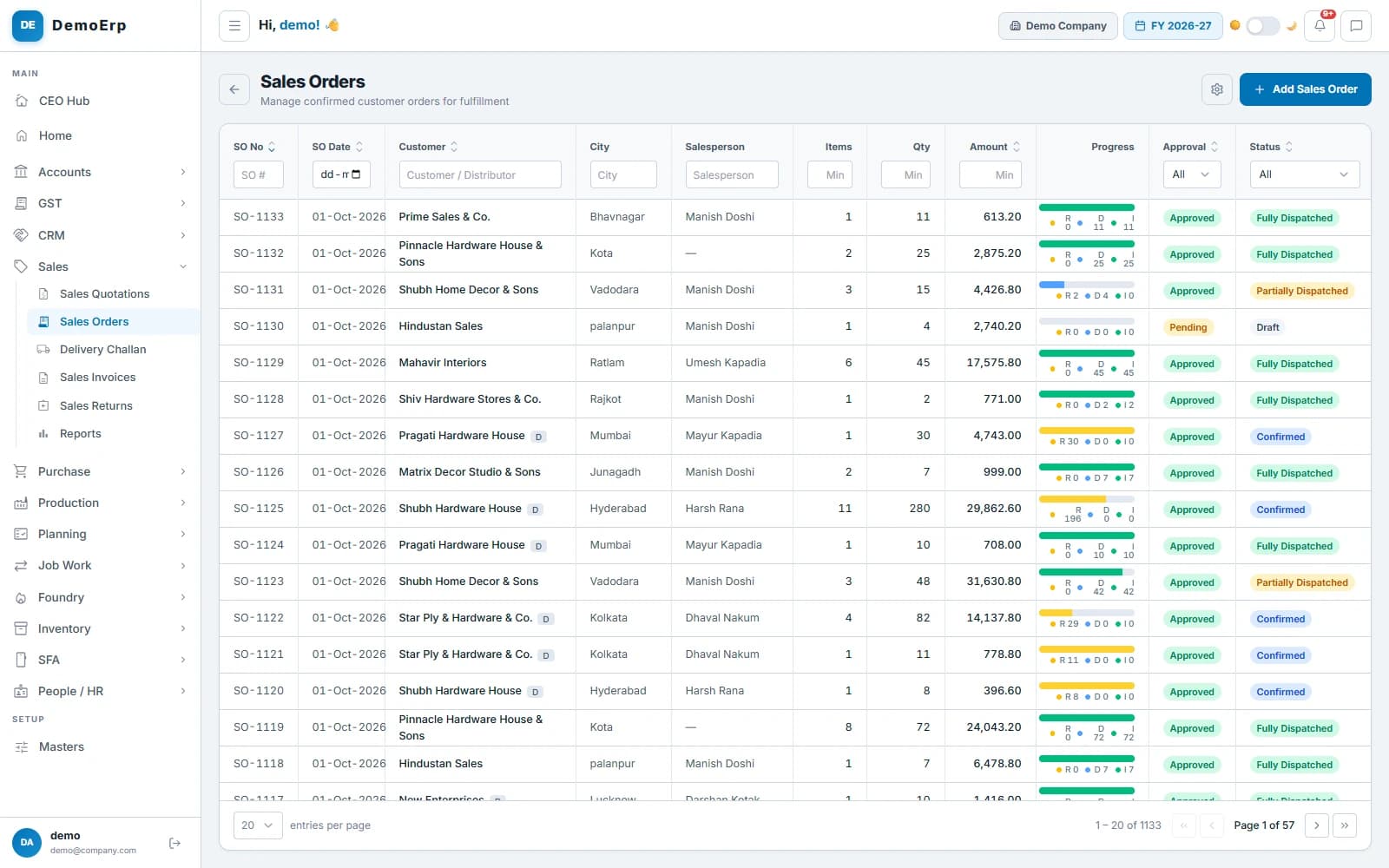
Real Stebly screens, shown with demo data.
This page is for you if…
- Quotes go out at old rates, a different one each time.
- Stock promised to one customer is shipped to another.
- Wrong items or short quantities go out in dispatch.
- Nobody can say which orders are still to dispatch.
Used by the sales office, the stores, dispatch and accounts.
How an order goes from quote to invoice, in 6 steps.
Real Stebly screens, with the demo company's numbers.
- step 1 of 6
The right price on every quote
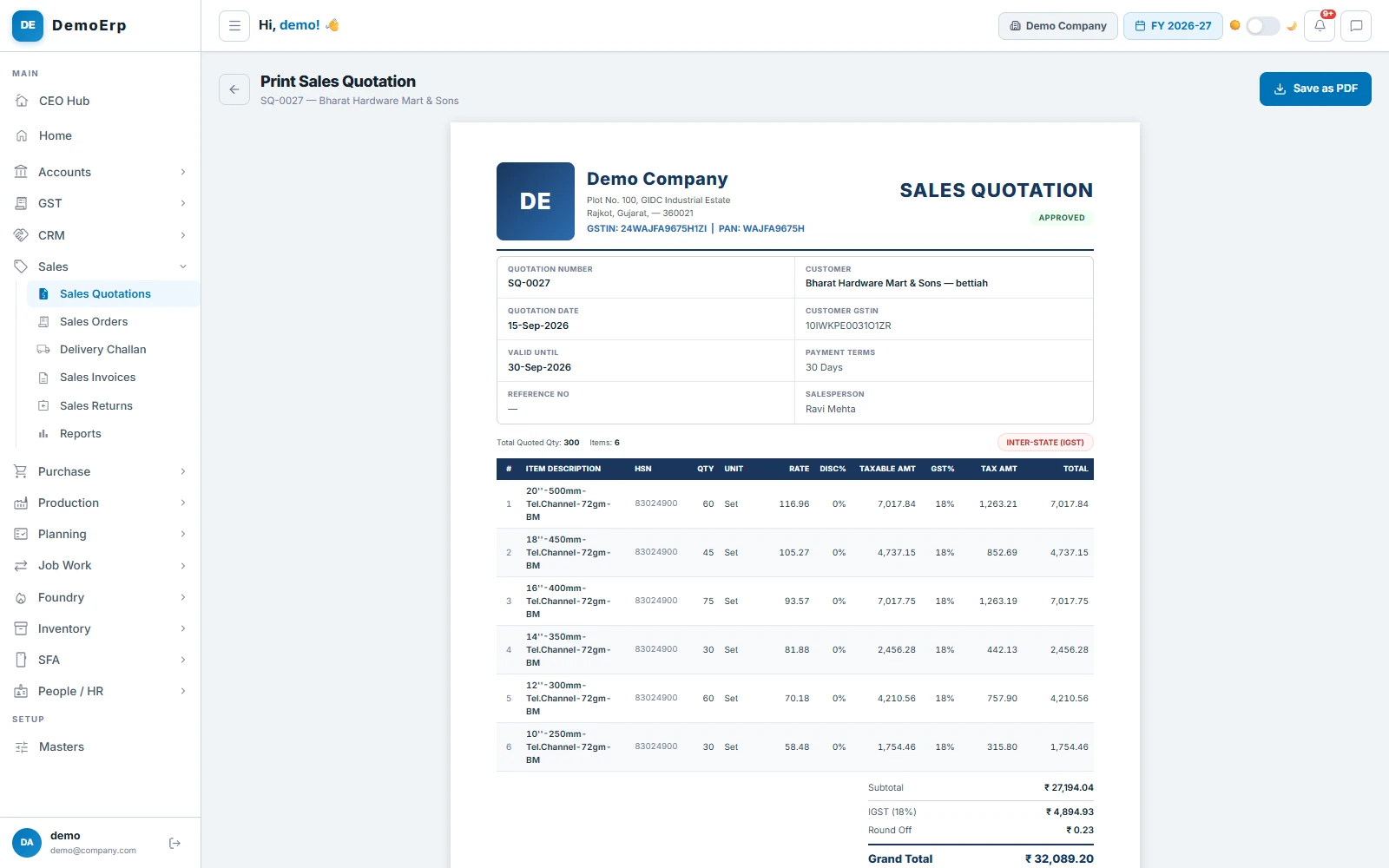
Rates come from your price lists, set for a customer, a type of customer or a city, and for an item, a group or a category. An approved quotation becomes a sales order in one click.
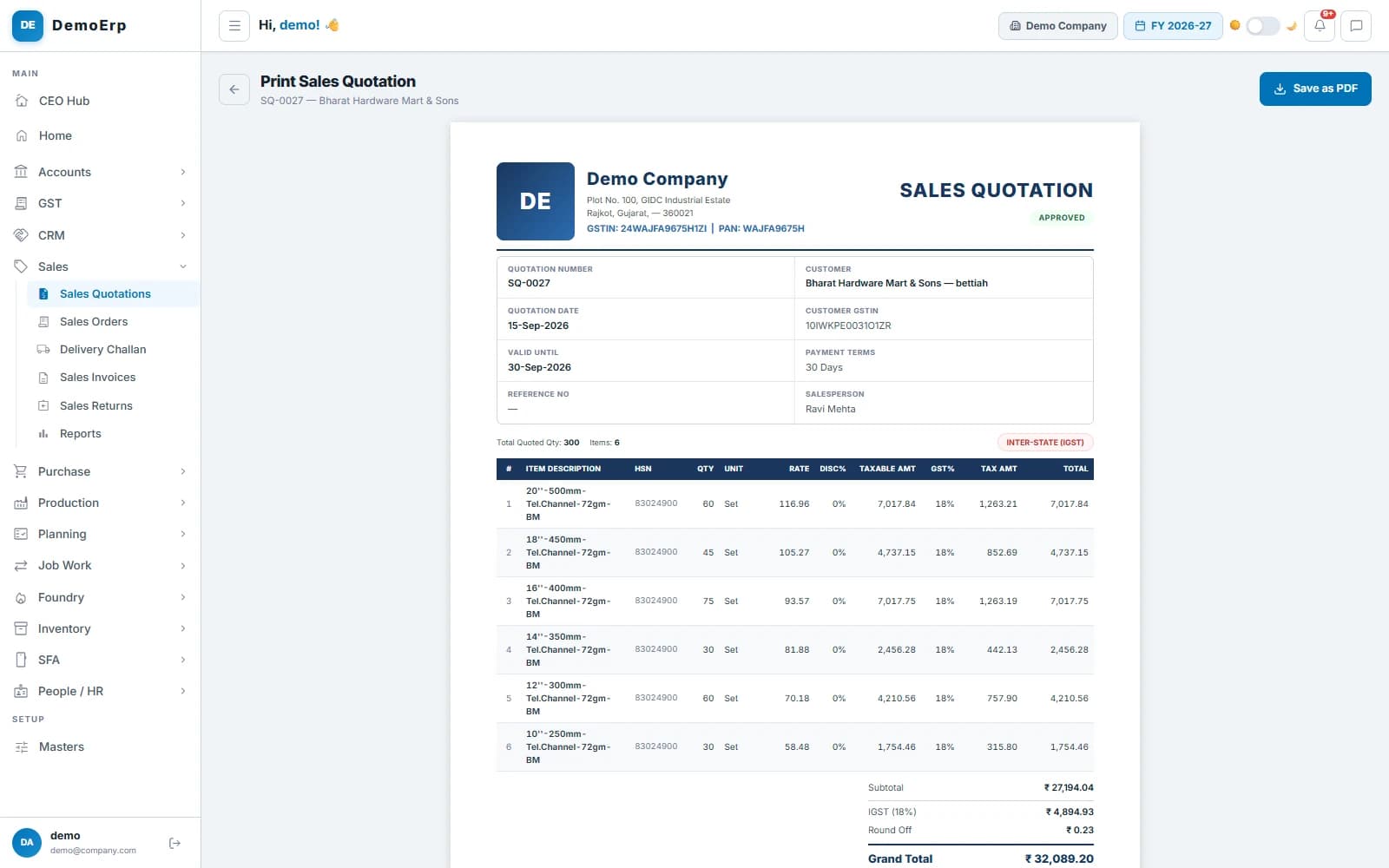 An approved quotation for six items to a customer in another state, valid for 15 days, with IGST.
- A price list gives a discount on MRP, a flat amount off or a fixed rate, rounded to ₹1, ₹5 or ₹10.
- The closest list wins: a customer's own list before its type's, its type's before its city's.
- Each quotation is approved and carries a date it is valid until. An approved one is never edited: a change is made on a copy.
- A proforma invoice asks for an advance, and the advance is set off against the invoice later.
- step 2 of 6
Stock held for each order
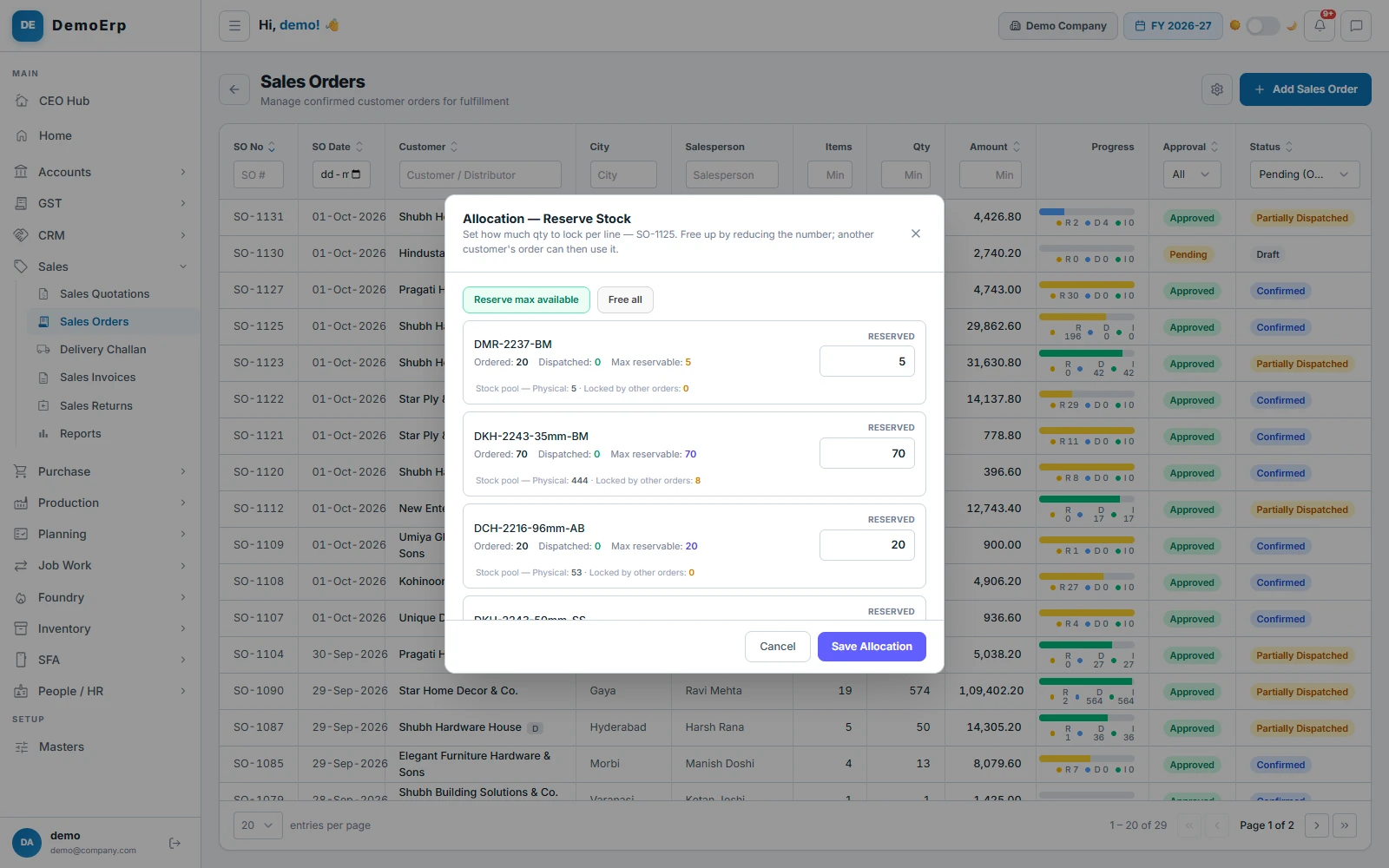
An order holds its stock, line by line, so another customer's challan cannot take it. Every order shows how much is reserved, dispatched and invoiced.
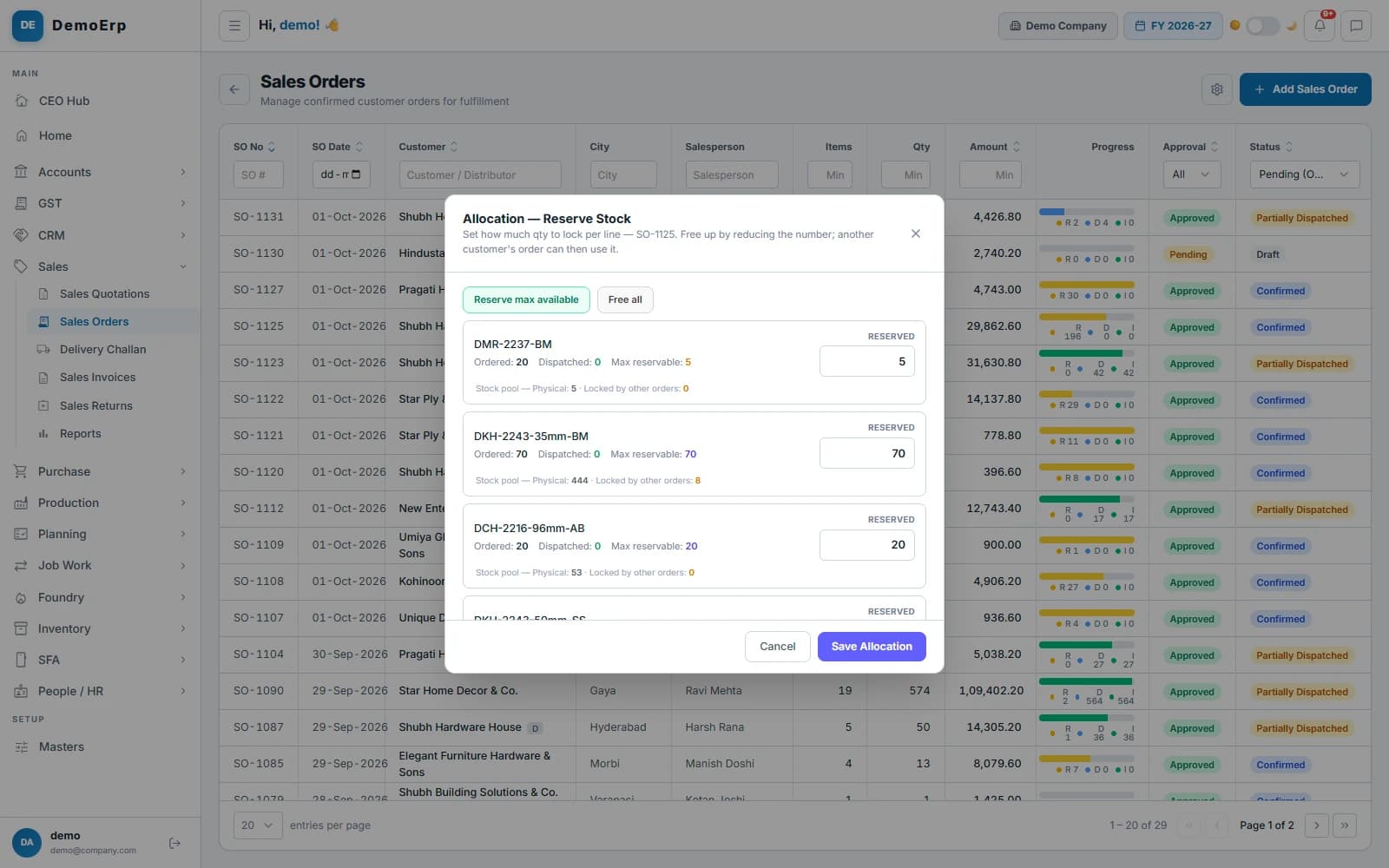 An order for 11 items: the first line asks for 20, only 5 are free, so 5 are reserved.
- Reserve up to the free stock: what is on hand, less what other orders hold.
- Reserve line by line, or on confirming the order if you switch that on. Free it for a more urgent order.
- Every line has a delivery date, and approval tells the distributor, the salesman and the dealer app.
- A line the customer no longer wants is short closed, and its stock is freed.
- step 3 of 6
Pick, pack and check
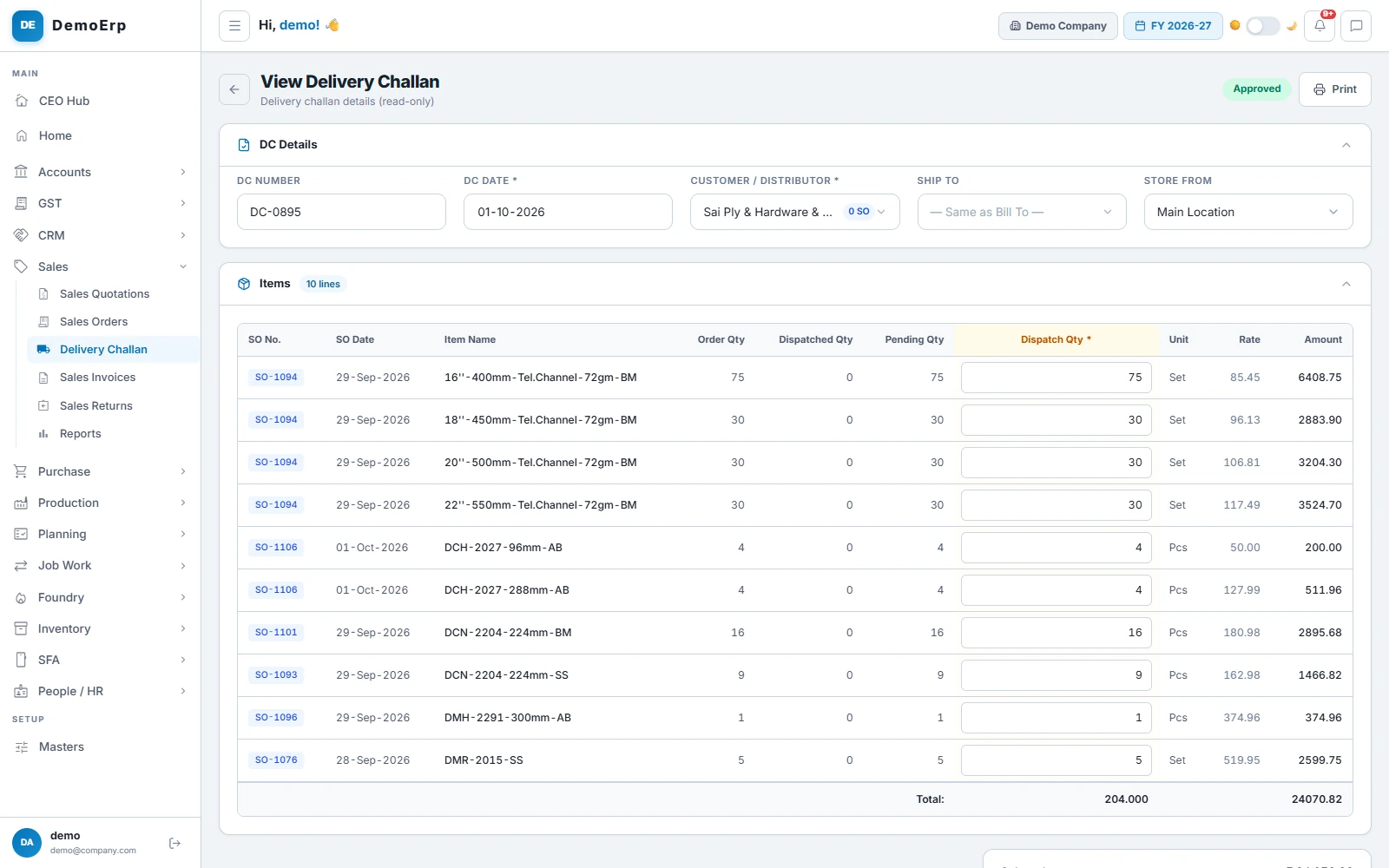
One challan can take lines from several of a customer's orders. The store picks from a list that shows each item's rack, and each box can be scanned against the challan before it leaves.
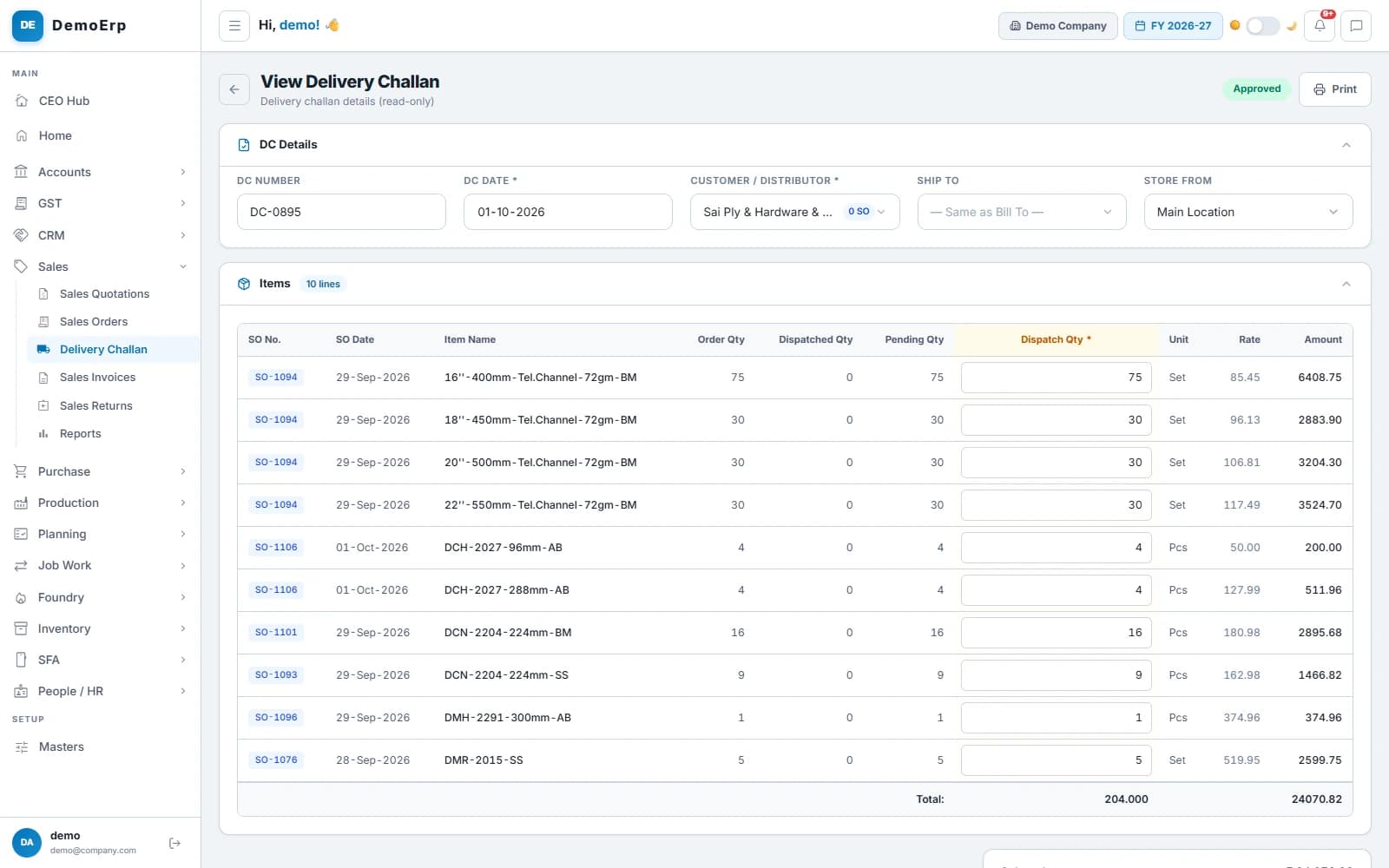 One challan for ten lines from six orders of one customer, with what was still pending on each.
- A pick list for the store, with each item's bin or rack and a box to tick.
- With scanning on, a wrong item or an extra box is refused, and the challan waits until every line is scanned. Skipping a scan needs a reason, and is logged.
- Packing photos are kept with the challan.
- Transporter, vehicle, LR and the e-way bill go on the challan, and the dealer app tells the dealer the goods are on the way.
- step 4 of 6
Bill it from the challan
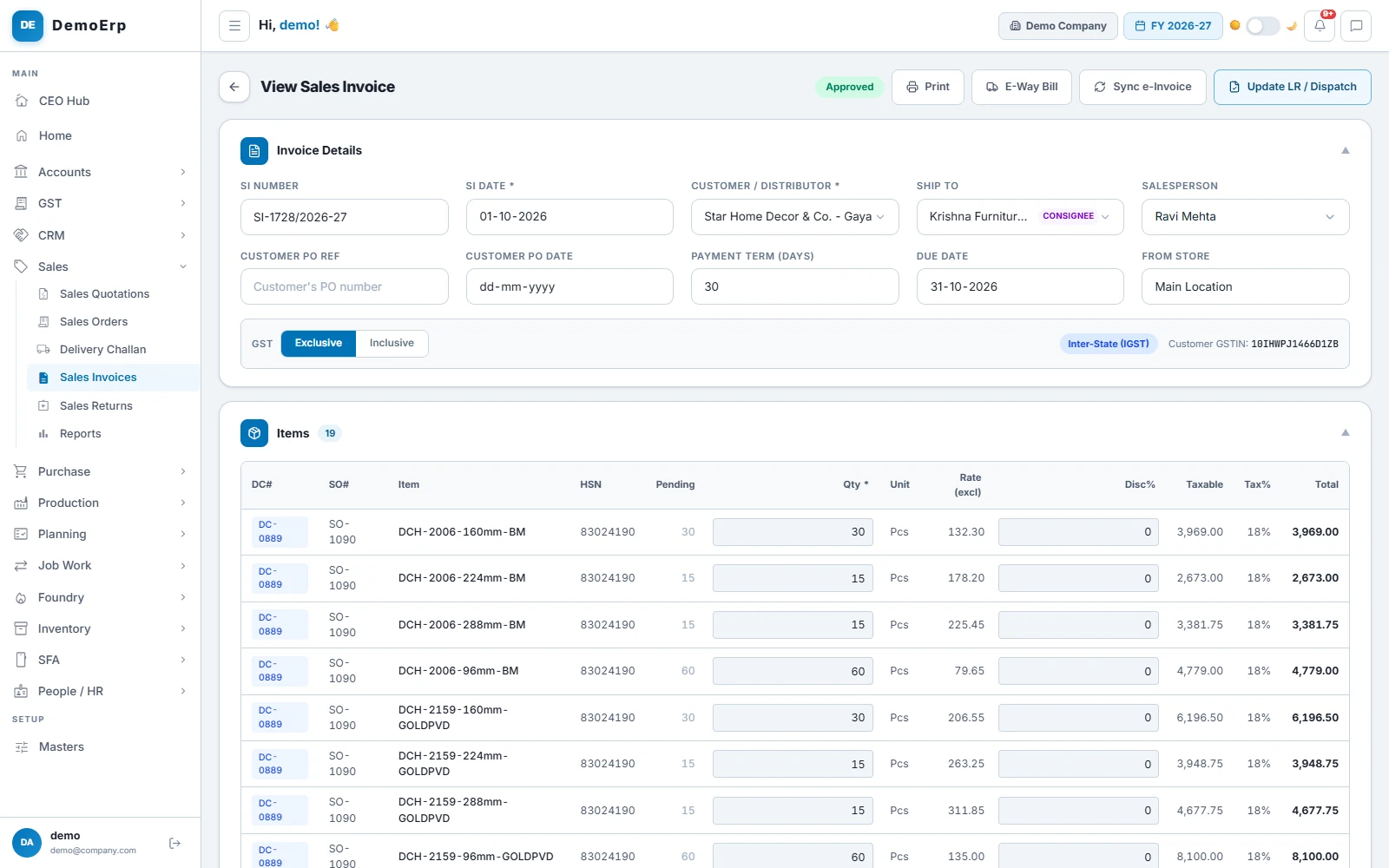
The invoice is made from one or more challans, so it bills what went out and nothing else. The e-invoice and e-way bill come from the same screen, and approval posts the invoice to the books.
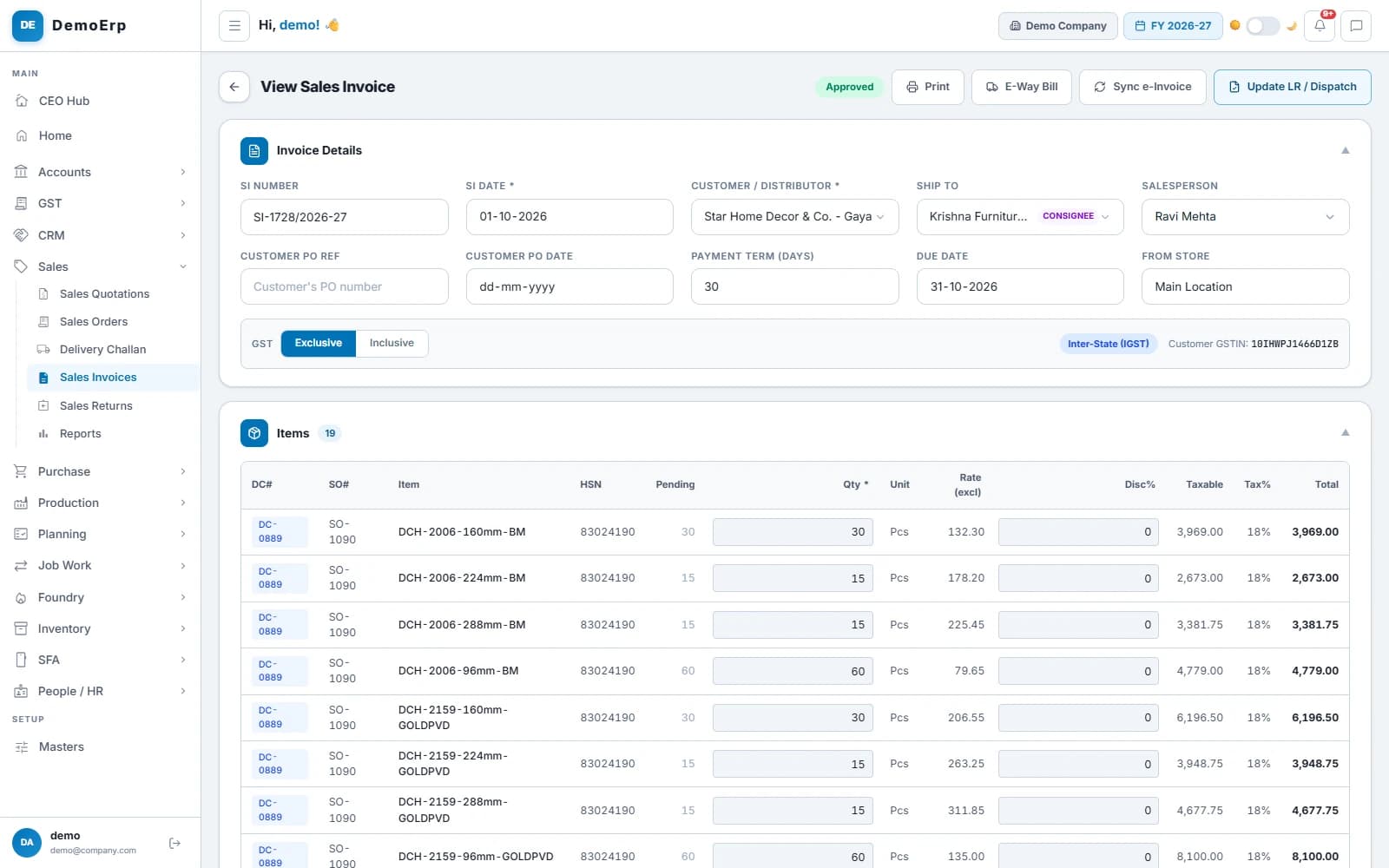 An invoice of 19 lines from one challan, shipped to a consignee in another city and due in 30 days.
- Each line shows its challan and order, and part of a challan can wait for the next bill.
- The IRN and the e-way bill come on a button, never by themselves. The IRN's QR prints on the invoice, with your UPI QR.
- Approval checks the GST details and the locked period, then posts the invoice to the books.
- A direct invoice for counter sales is checked against stock, and a barcode scan adds its lines.
- step 5 of 6
Know what is still to ship
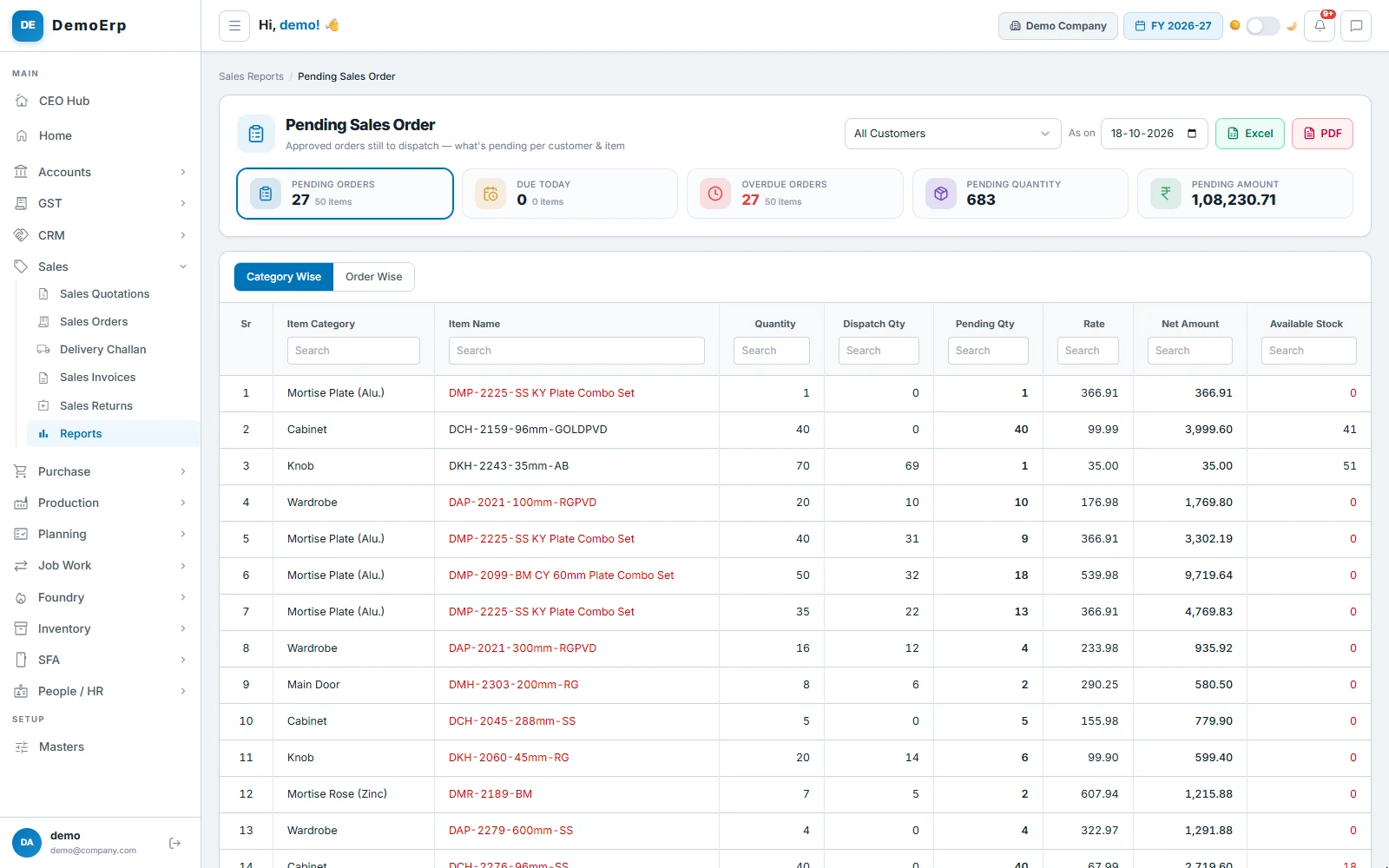
The pending report lists every confirmed order not yet fully dispatched, line by line, with the stock you have for it. Lines short of stock show in red.
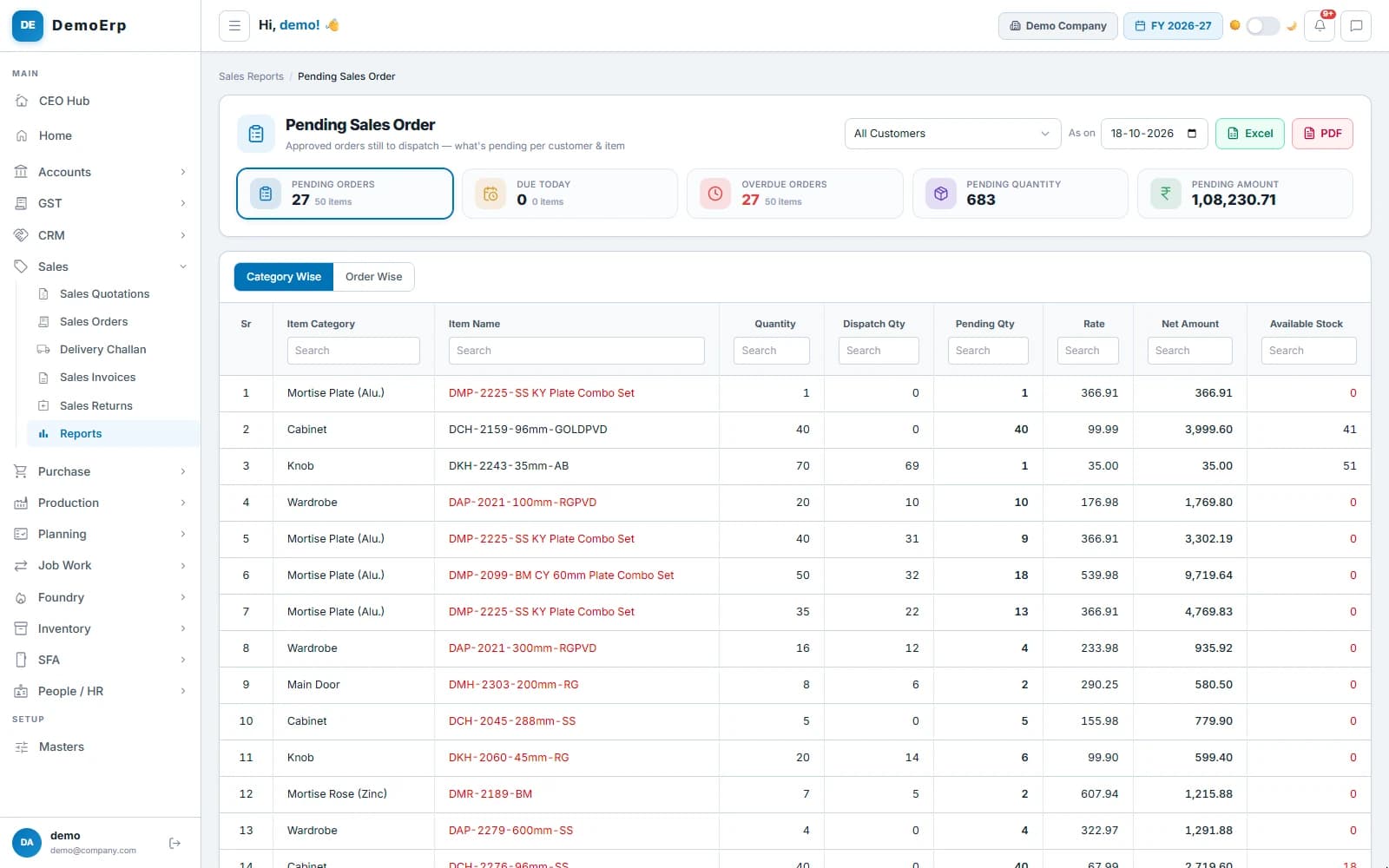 27 orders still to dispatch, worth ₹1.08 L, with the stock on hand beside each line.
- By item category, or by order with each line's delivery date and the days it is overdue.
- What is due today and what is overdue, with the pending quantity and value, for one customer or all.
- Bills whose goods the customer has not yet confirmed receiving, in a report of their own.
- Taken as on any date, to Excel or PDF.
- step 6 of 6
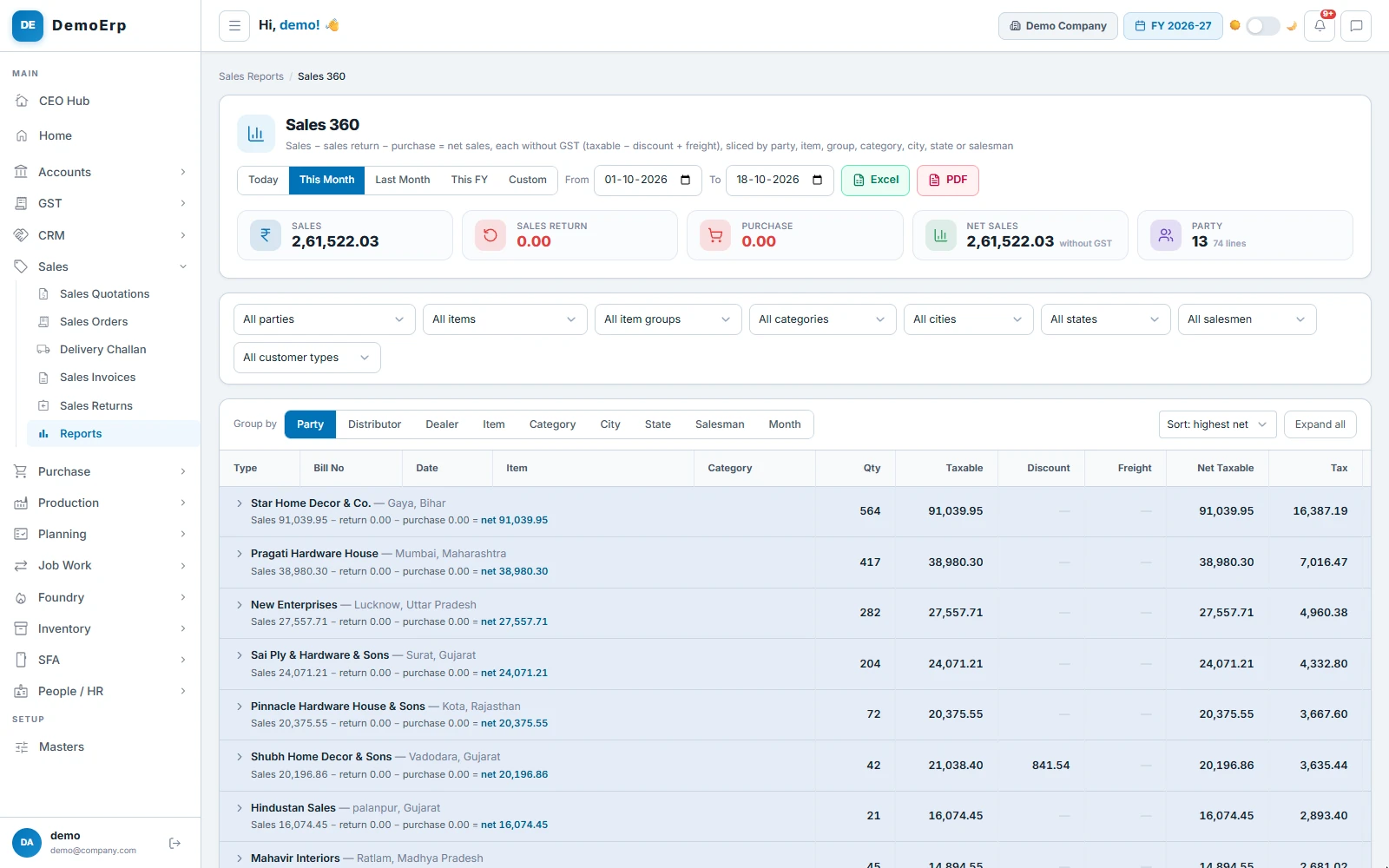
See what sold, and to whom
Sales 360 shows net sales without GST, by customer, item, category, city, state, salesman or month. The sales register lists every bill with its tax.
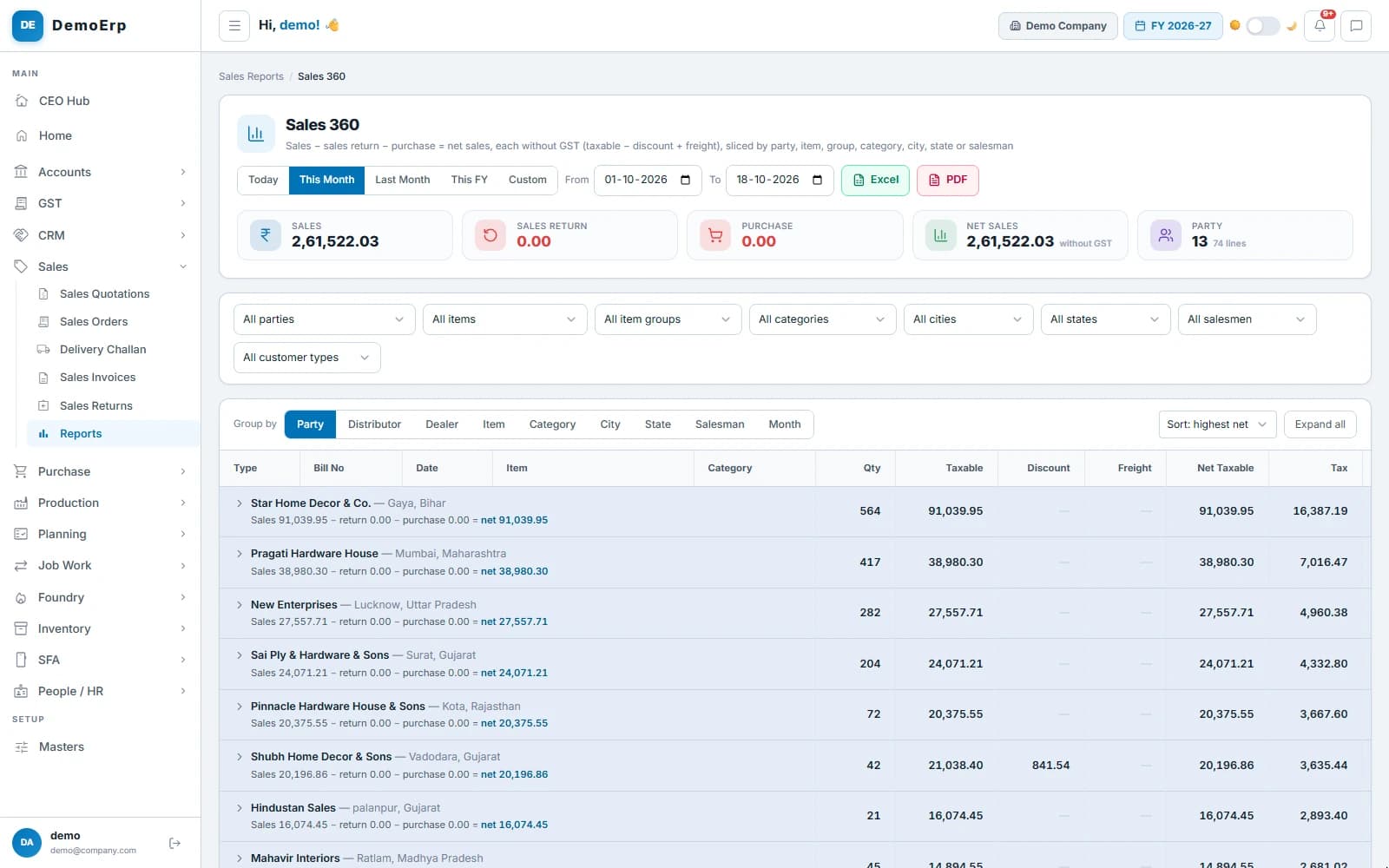 October so far: ₹2.62 L of net sales to 13 customers, the largest first.
- Group by customer, distributor, dealer, item, category, city, state, salesman or month, and open any group to its bills.
- Returns come back as credit notes, with a reason on each line, and their stock goes to the store you pick.
- The sales register by bill, by customer or by month, with CGST, SGST and IGST.
- Invoices from your old system come in from Excel.
Everything in Sales.
- Price lists by customer, type or city
- Discount on MRP, amount off or fixed rate
- Quotations with approval and a valid-until date
- Quotation to sales order in one click
- Proforma invoice for an advance
- Delivery dates on every order line
- Stock reserved for each order
- Short close of a line
- Order alerts to distributor, salesman and dealer apps
- One challan for several orders
- Pick list with bin and rack
- Barcode scan before dispatch
- Packing photos
- Transporter, vehicle and LR details
- E-way bill from the challan or the invoice
- Invoice from one or more challans
- E-invoice IRN, with its QR on the print
- Direct invoice for counter sales
- Goods received, confirmed per bill
- Sales returns as credit notes
- Pending sales orders by item or by order
- Sales 360 by customer, item, city or salesman
- Sales register with GST
- Invoices imported from Excel
Every module is in one plan, and they all work on the same data.
Questions about Stebly Sales.
How does Stebly Sales pick the rate on a quotation?
Can stock be held for one customer's order?
Does Stebly make the e-invoice and e-way bill?
How does it stop wrong items going out?
See an order go from quote to invoice.
We walk you through a quotation, an order with its stock held, a checked dispatch and the invoice, set up with your own price list. Send your item list on WhatsApp and we'll run it on your own data.